



Most churches already have the training. It lives in a binder at the welcome desk, a slide deck from the last workers' meeting, and the memory of whoever taught it well. What is usually missing is a way to walk each new volunteer through it, confirm they understood it, and produce a record at the end. Here is how that path looks in Cendance, using a children's ministry training course as the example.
Start with the material you have. A course is a set of lessons, and each lesson holds the real content: the written policy, the check-in walkthrough, a short video, the incident form as a file. Mark the lessons everyone must complete as required, set a prerequisite where order matters, and name the instructor so learners know who wrote it. The course stays a private draft while you work, and you publish it once.
Checking understanding used to be the slow part. Writing a fair quiz means rereading the lesson, deciding what matters, and phrasing questions that are clear without giving the answer away. Cendance now does the first draft for you. On the course's Quizzes tab, choose Generate with AI, pick a lesson, and set how many questions you want and how hard they should be. Esther reads that lesson's content, including the transcript of any video in it, and drafts multiple choice and true or false questions with the correct answers marked. You review every question, edit the ones you would phrase differently, and save. The quiz attaches to the lesson, and you decide the pass mark and how many attempts a learner gets.
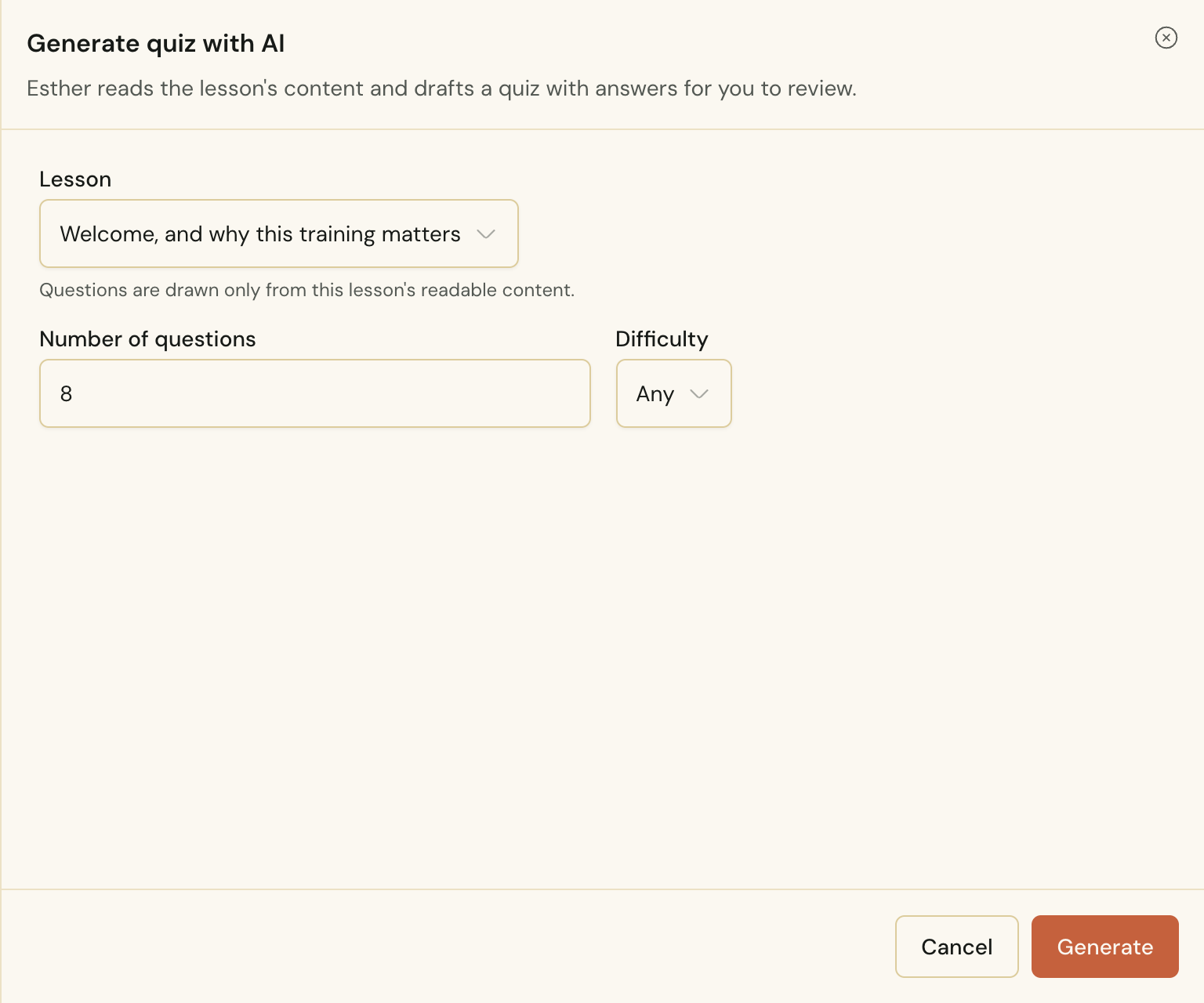 Generating a quiz with AI in Cendance: pick a lesson, choose how many questions and how hard, and Esther drafts them from the lesson's content.
Then enroll people. A cohort is a named group, such as this fall's children's ministry team, and you fill it from the people you already keep in Cendance: individuals, a whole group, or a segment. Learners take the course in Eden on their phone or laptop, and the roster in your dashboard updates as they go: assigned, started, in progress, completed. When a parent or a denominational visitor asks who has finished the safety training, the answer is on one screen.
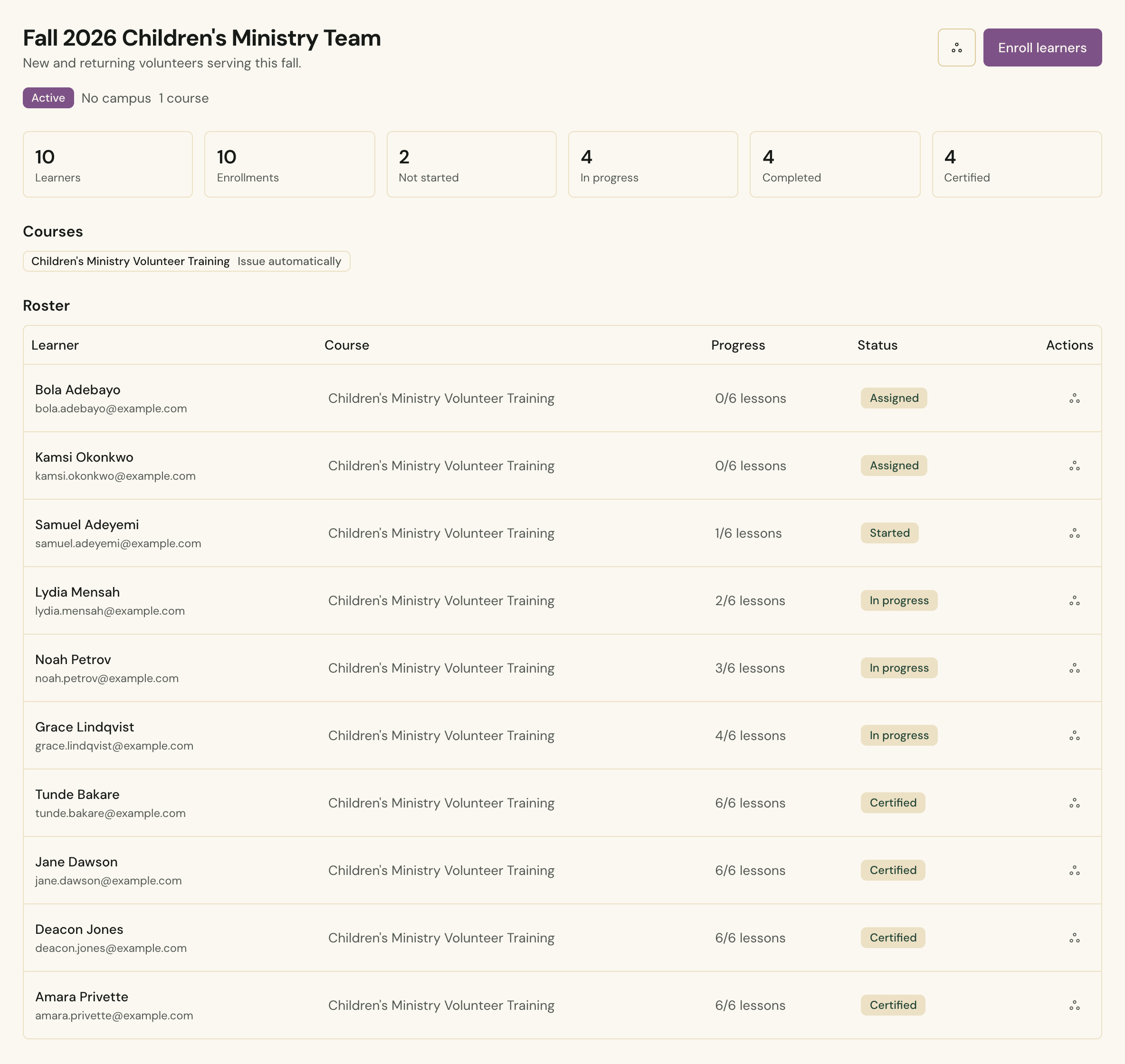 A cohort roster in Cendance, with each learner's lesson count and status from assigned through certified.
Certificates close the loop. Design one in the certificate template designer, starting from a system template or your own background image, and place the fields: the learner's name, the course title, the completion date, your organization's name, and the names and roles of the people signing it. Assign the template to the course and choose how it is issued. Automatic issues the certificate the moment a learner completes the course. Requires approval holds each one for your review first, which suits ordinations, leadership tracks, and anything where a person should look before a document goes out.
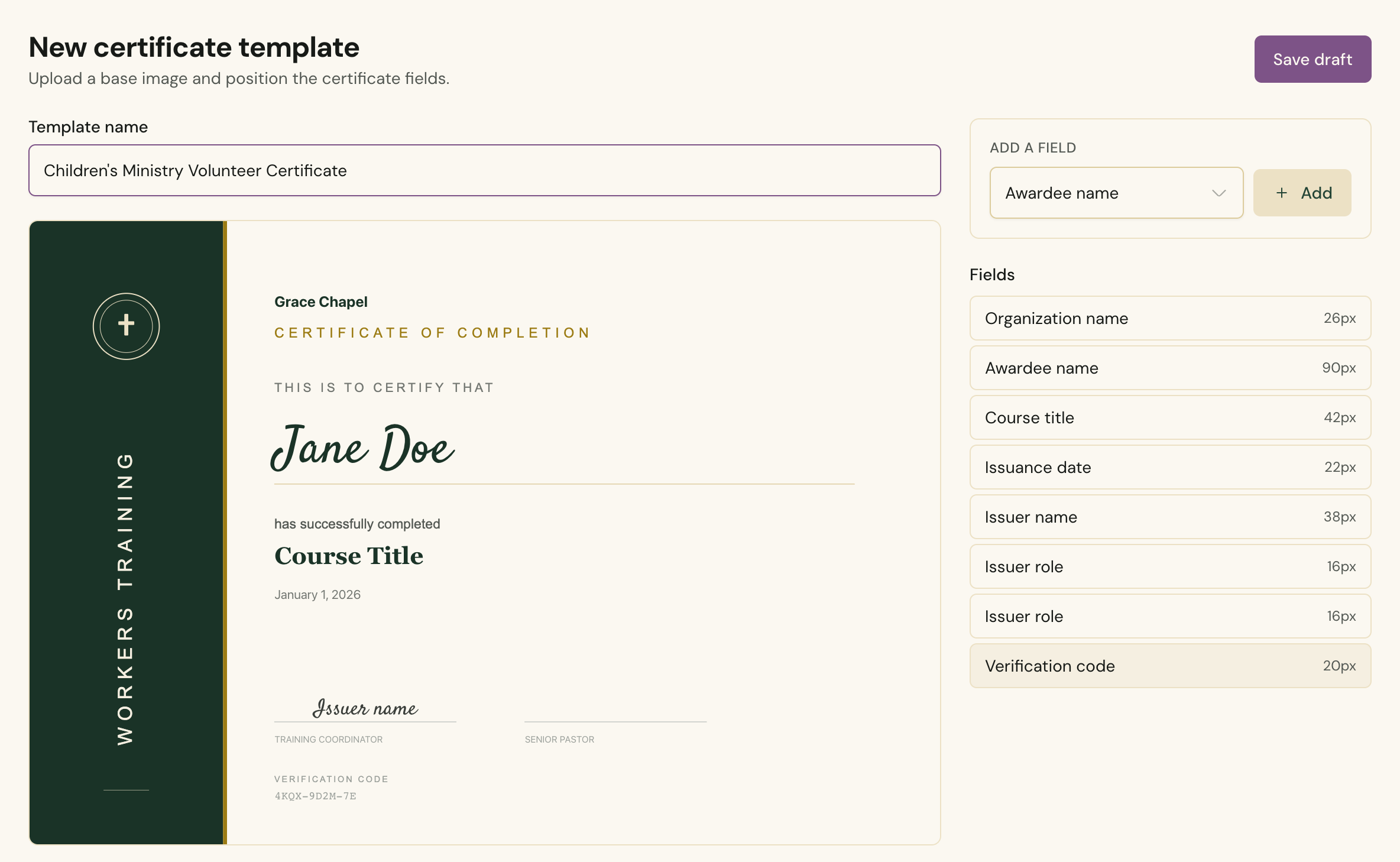 A certificate template in the Cendance designer, with the awardee, course, date, and signature fields placed on the design.
Each certificate is rendered as a PDF the learner can download, and it carries a verification code. Anyone handed the certificate can check that code on your public verification page and see that it is genuine. If circumstances change, a certificate can be revoked.
None of this writes your training for you, and it should not. You know what a new greeter needs to hear. Cendance takes care of the part that used to fall through the cracks: the quiz, the roster, the record, and the certificate that proves someone did the work.
Once a course is running, the interesting question becomes how to keep it alive across a year of cohorts. That is the subject of our next guide, how leaderboards and ratings keep a training program healthy.
You will find courses, cohorts, and certificate templates under Learning in your Cendance dashboard. Build one course this week, let Esther draft the quiz, and enroll your first cohort before Sunday.


